Help and FAQ
SignMaker and TrippyDrive '71 are written in Java, which in the ideal world means nearly anyone can run them without problems: "write once, run anywhere".
However, it's often not that easy.You might have problems taking a screenshot of a sign, printing it, or even getting the program to run on your computer. Java makes some assumptions about your computer (that might not be true), and it also restricts you from doing some common things (in the interest of protecting you from strangers bearing Java programs).
To get "on the road" faster, read this page first. Thanks!
Topics
- SignMaker won't start!
- Saving a sign as a picture
- Getting the "freeway font"
- Running SignMaker offline
- My mouse or keyboard doesn't work...
- Using the Control Panel
- Legalese (e.g. can you use the signs in your website?)
- Bugs
- So when will you update...
SignMaker won't start!
This usually happens because there isn't enough memory to run. SignMaker needs a lot of memory to do the image processing; as one wag said, "it runs great as long as you've got 128 MB of RAM." This shouldn't be as big a problem in 2012 as it was in 1998.If the offline version of SignMaker isn't starting up, see Running SignMaker offline.
How to save a sign
You've made a really neat sign. How do you save your work?
Because of Java's security restrictions, SignMaker and TD71 cannot write files to your system (disk drive, zip drive, etc.) How this affects you the most is that there's no "Save" function. To save a sign, take a screen shot, and edit it in your favorite paint program. Here's how to take a screen shot:
- Macintosh: press Command-Shift-3, which writes a Picture file in your hard disk's main folder. Open this file with an image editing program.
- Windows: press the Print Screen key, which places a bitmap image in the clipboard. Paste this into an image editing program.
- X Windows: run xwd, then import the file into an image editing program.
If you want to include the sign in your website (which is perfectly OK for non-commercial sites), convert it to PNG.
Getting the "freeway font"
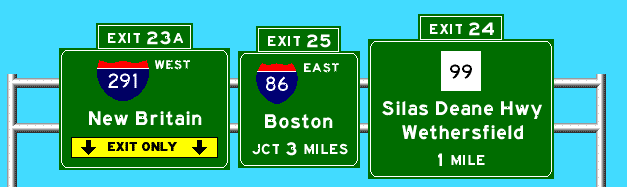
Part of SignMaker's appeal is the authentic-looking font used for lettering. The official name is FHWA E(M); but many people call it the "freeway font." SignMaker doesn't use the actual font, but instead uses a picture of each letter, like old-fashioned wooden type, to assemble the words in the sign.Many people want the real font, however, for more precise or esoteric things than SignMaker can do. I cannot give you a copy of this font, since it's not freeware. However, you can go to Larabie Fonts for a free FHWA E(M) clone called "Blue Highways."
Running SignMaker Offline
To do this, you must have a Java runtime environment on your computer, and have downloaded the SignMaker package. Go to the directory containing Signmaker.class, and type java Signmaker.
My mouse or keyboard doesn't work...
It's natural to try to right-click on a sign you've created, and then select "Save this image." However, that doesn't work, because Java traps mouse events and wouldn't automatically save an image anyway. See How to save a sign for how to do this.
If SignMaker's window is highlighted, it's usually getting your keyboard events as well. If you're typing in its Control Panel, that's great; if you're wondering why Alt-Tab or some other keystrokes don't work, that's not great. Simply click outside SignMaker, and your Windows, Mac, or Unix key commands will return to normal.
How to use the control panel
- The first row of the control panel sets general properties: which of the three sign panels you're currently editing, whether or not that panel is hidden, several sample signs to start with, and how redrawing should be handled.
- You can place up to four sign panels on the screen; check "Hidden" for ones you're not using.
- Sign panels now come in three new colors along with basic green: brown for historical sites, yellow for warnings, and blue for whatever.
- The dropdown labeled "Long Island Crossing" has several fictional signs for different areas of the US. Just because I made a sign for something (like I-99) doesn't mean I necessarily endorse that highway.
- To redraw the sign with your new information, press "Redraw."
- The "Exit:" text can be any string. If it's empty, the exit tab disappears. You can have a narrow exit tab (large enough for the text) or a wide one (as wide as the sign, as in Illinois).
- There can be up to three highway markers on a panel, with any mix of directions. Please fill them in left to right, otherwise the applet gets confused. To hide a marker, clear its text box.
- Town and street names can be any text, up to three lines. The sign will resize to fit them.
- To guide the driver, you can either use a text string, like "1/2 MILE" or "NEXT RIGHT", or use a predefined arrow. Check out all the arrow types; they're free.
Legalese
SignMaker and TD71 are free for noncommercial use. I don't make any money from them; neither should you. If you use a SignMaker image on your website, please provide a link to this page so your visitors can learn how to make their own signs.If you'd like, you can copy this HTML code to provide the link:
Signs made with <a href="http://www.kurumi.com/roads/signmaker/">SignMaker</a>
I'm keeping the source code to myself for both programs; they're not open source. Also, please do not mirror either program on your own website.
Bugs
- The windows are supposed to pop up in logical places, but they really seem to be at the mercy of your particular machine.
- Some arrow colors on brown signs are wrong.
- In low-memory situations, some arrow might appear in purple rectangles. Increase the memory allocation if you can.
- Some state markers look better than others with long numbers.
- The applet does not check for out-of-band values like 5-digit interstates. You have the freedom to make some ugly signs :-)